Copying files from your host machine directly into the DaDesktop machine
One feature that users have frequently asked for is the option to transfer files straight from a trainer's personal laptop or desktop into the DaDesktop environment. These files could be anything from presentation slides and installation ISOs (for setting up a nested virtualization system that powers multiple servers and desktops) to general documents needed for a specific training session.
The development team has rolled out a straightforward drag-and-drop file transfer capability in the latest Windows 10 and most Linux templates. Now you can simply drag files from your host machine (your laptop or desktop) and drop them right into the DaDesktop window.
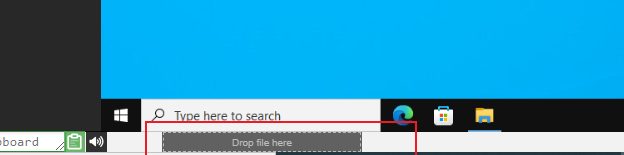
For now, transfers are restricted to a single file at a time. However, if you need to move multiple files, just bundle them into a zip archive and drag that over instead. The system breaks large files into chunks to ensure efficient transmission, and it performs most smoothly on a fast fiber internet connection. Folder structures inside archives (like zip files) are preserved.
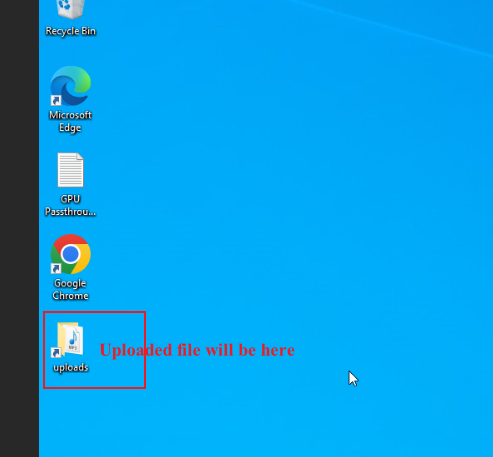
On Linux templates, there isn't yet a desktop shortcut pointing to the Uploads folder like there is on Windows. Instead, you can locate transferred files at:
/home/student/uploads-to-dadesktop
In summary:
OS Templates that currently have this feature enabled
- Debian 12 - v20240314 and newer
- Ubuntu 22.04 - v20240314 and newer
- Ubuntu 24.04 - v20240314 and newer
- Windows 10 - v67 and newer
OS Templates that do not have this feature enabled (as yet)
- Debian 11
- Almalinux
- Kali-linux
- Any older versions of the templates
Keep in mind that this early-access feature will be expanded with more additions soon.
If you have any feedback, feel free to reach out via the DaDesktop Technical support chat.