Oracle Server issues/fixes
Most applications run without a hitch when set up in a Fresh Start machine on DaDesktop (DD). However, a couple of applications may not behave as intended after the cloning process, requiring a few extra tweaks to restore normal operation.
System Details
-
Oracle Database 19c (other versions will likely follow the same pattern)
- Deployed using the Windows 10 template
Fresh Start Fix Notes
-
Keep in mind this is a general guide for resolving issues with this application inside Fresh Start. Steps might vary depending on your specific configuration.
-
Summary – The fix on Fresh Start works as follows. The original hostname of the Fresh Start machine is captured, but upon cloning, a different machine name is assigned, rendering the original hostname meaningless. To get around this, we point to 127.0.0.1 localhost instead of the previous hostname. In addition, extra database Listeners can be present and cause confusion; these are best removed as demonstrated below.
Fix process
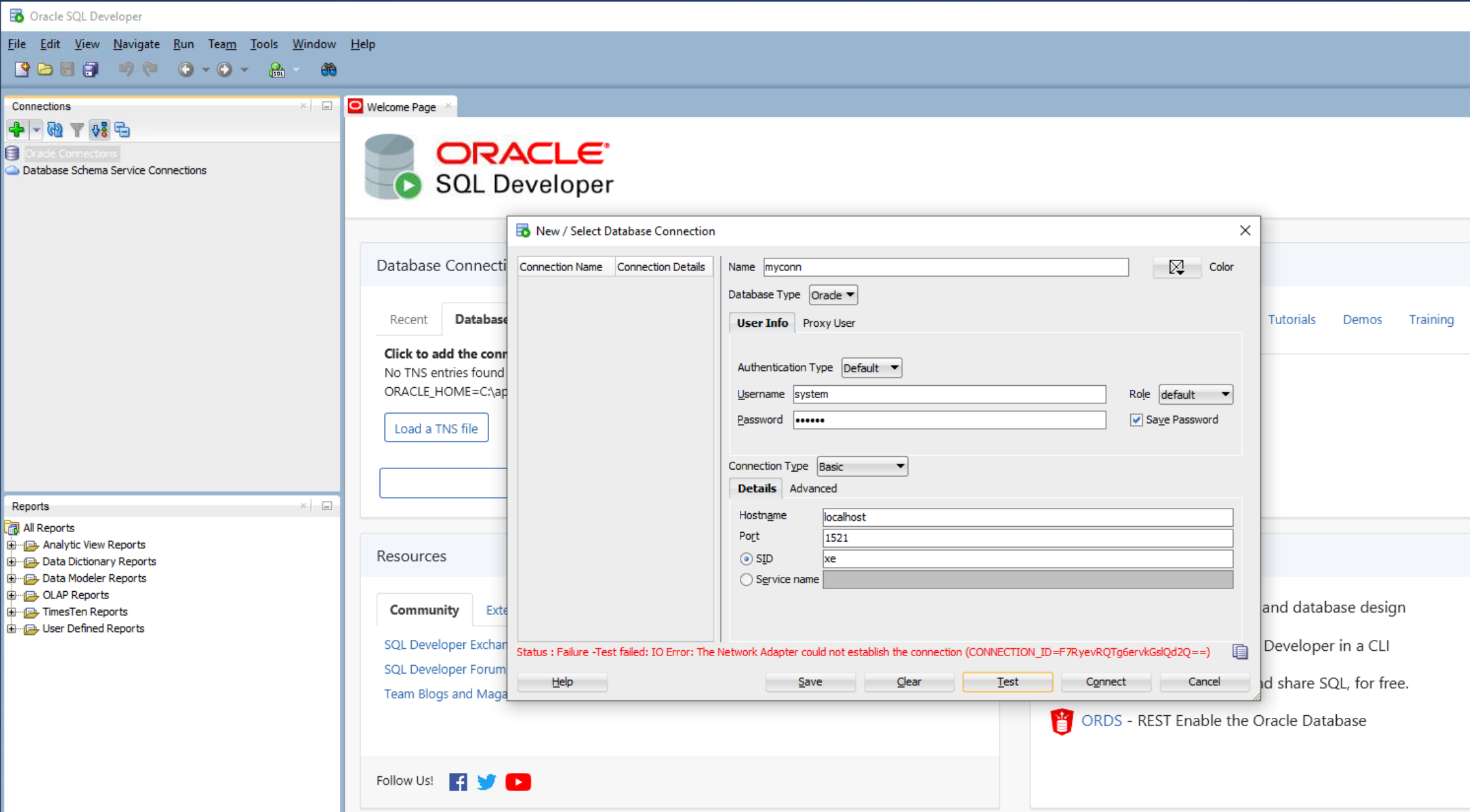
1. The image below illustrates a database connection network failure when using Oracle SQL Developer.
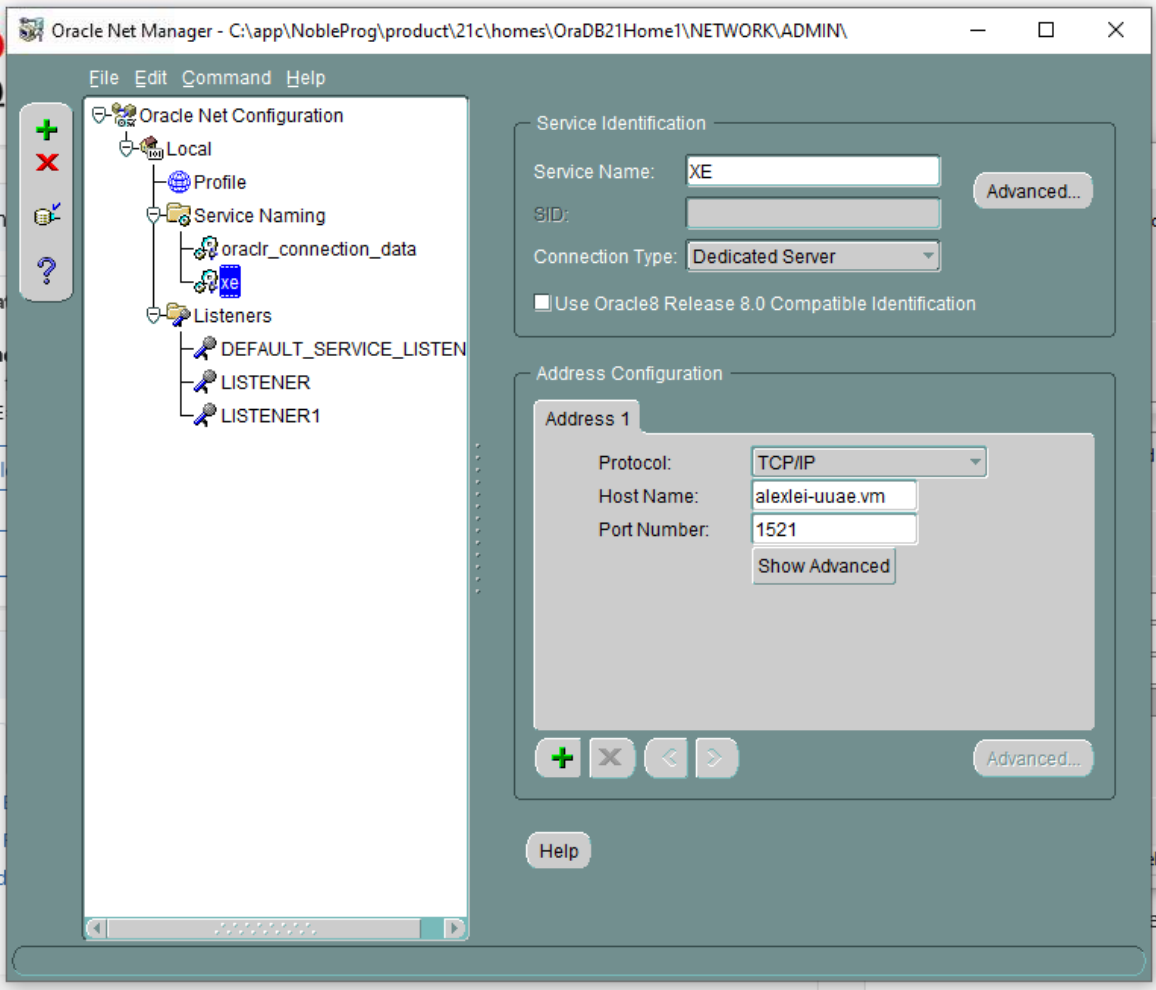
2. Open the Oracle Net Manager application.
Here you can see the xe service details, still featuring the original host information (in this instance, alexei-uuae.vm).
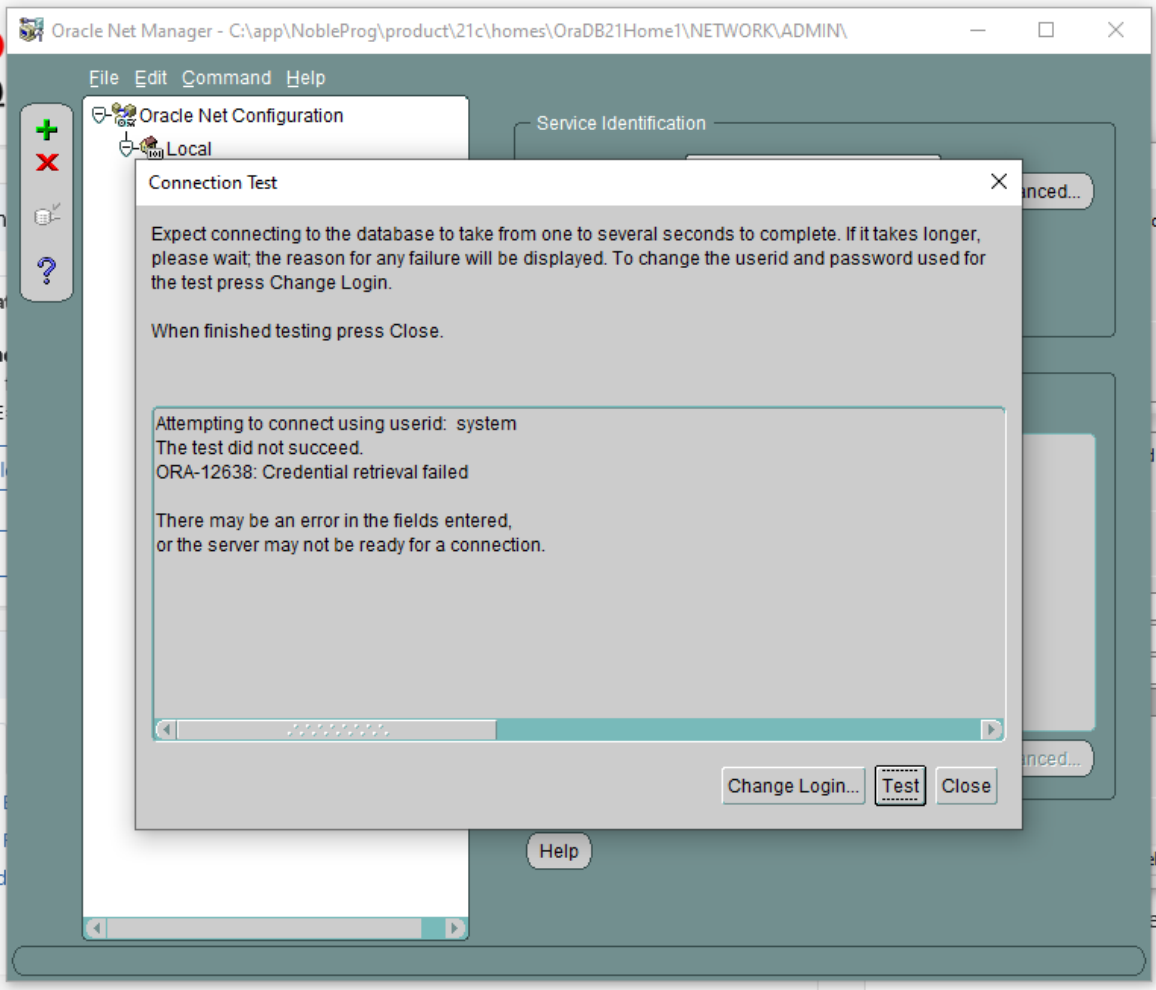
3. A connection test fails (entering userid=system and the appropriate password).
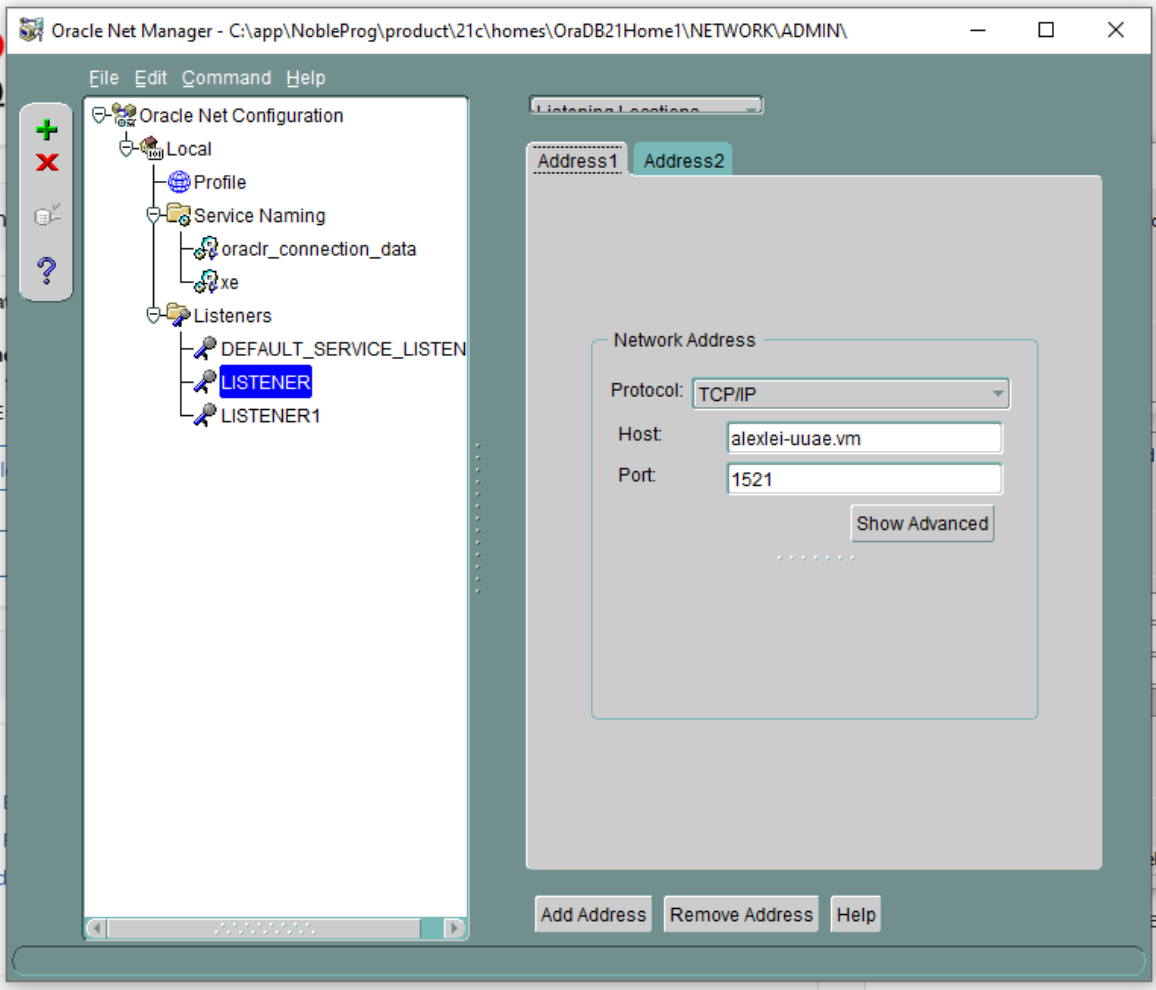
4. In Oracle Net Manager, go to Listening Locations, Listener.
The host details display the former hostname ‘alexei-uue.vm’, which is what we’ll now adjust.
5. You’ll notice no databases are set up to work with LISTENER1. Check for any Listeners that lack configured database services. If such Listeners are found, delete them.
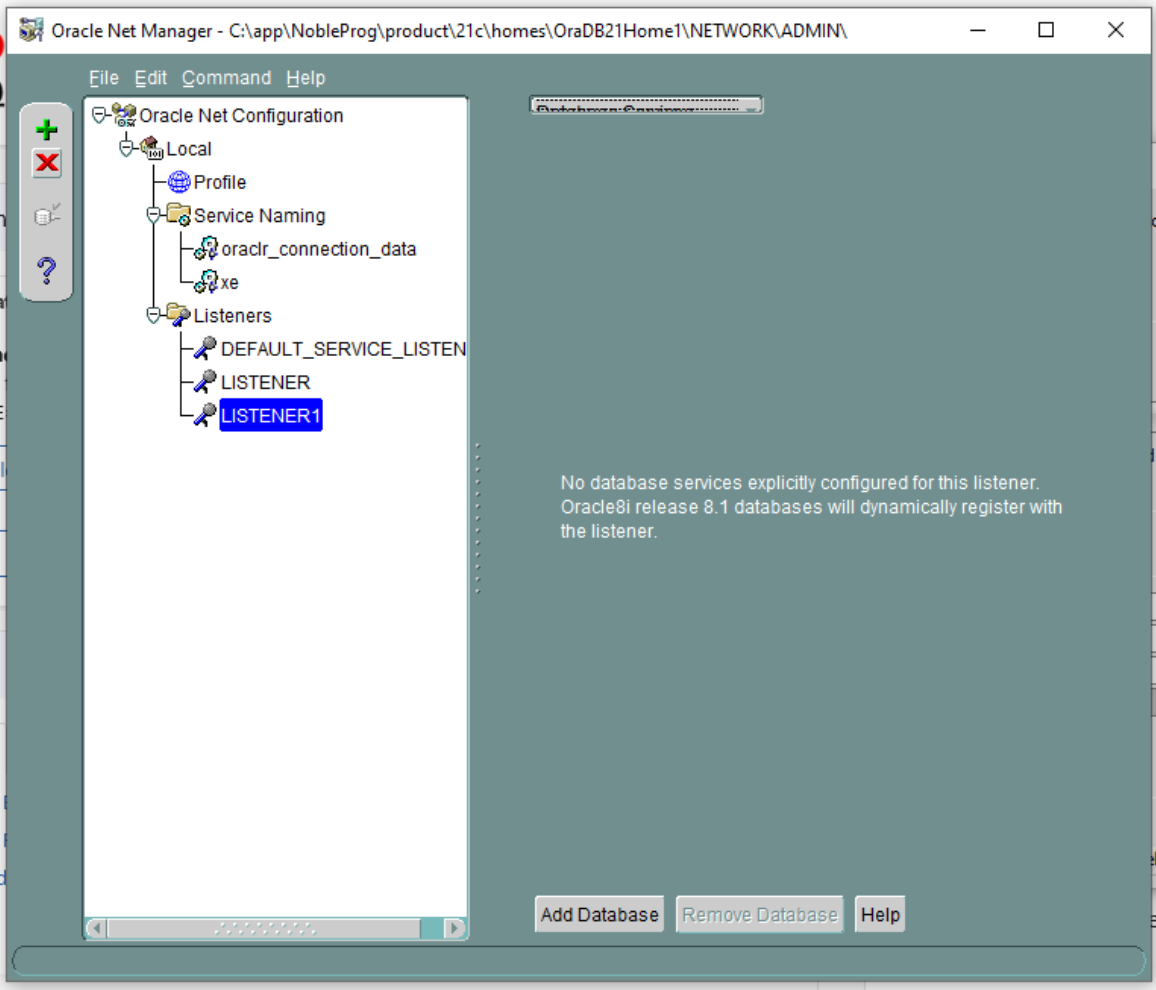
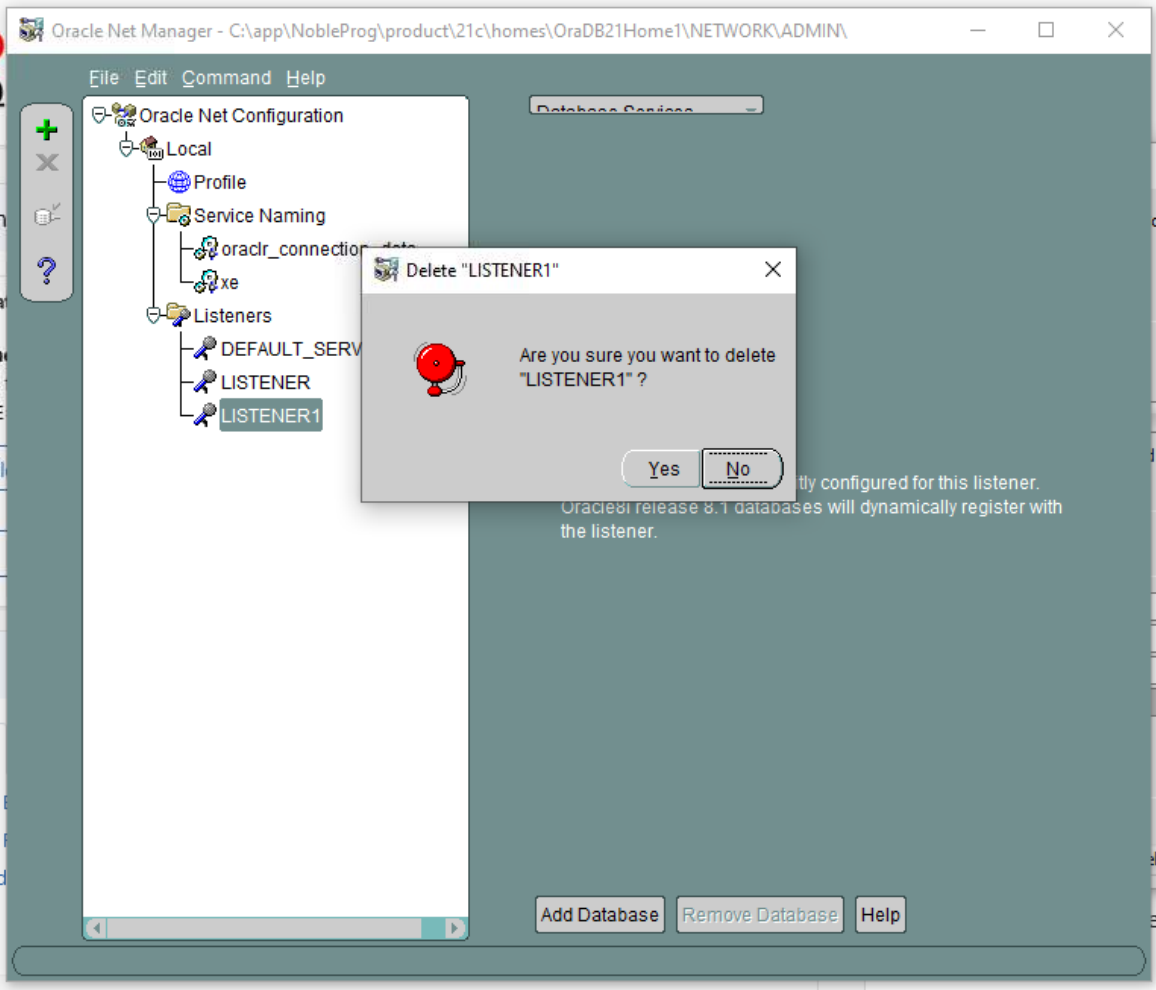
6. So, delete LISTENER1 and confirm the action. This is an example of what happened during our own setup, but it may not apply to every case; it’s shown here just as an illustration.
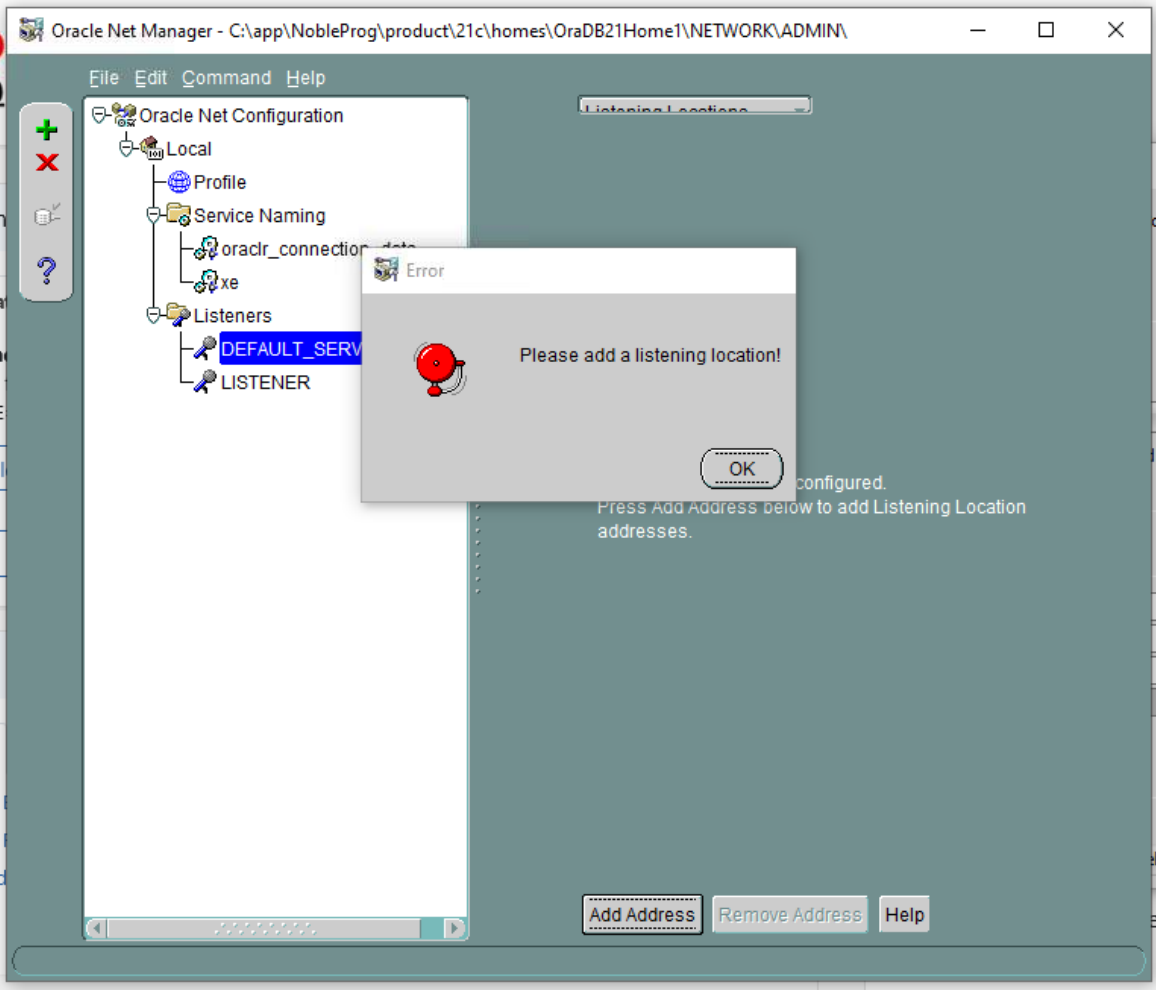
7. DEFAULT SERVER LISTENER – Inspect each Listener one by one. In this situation, no listening location is available.
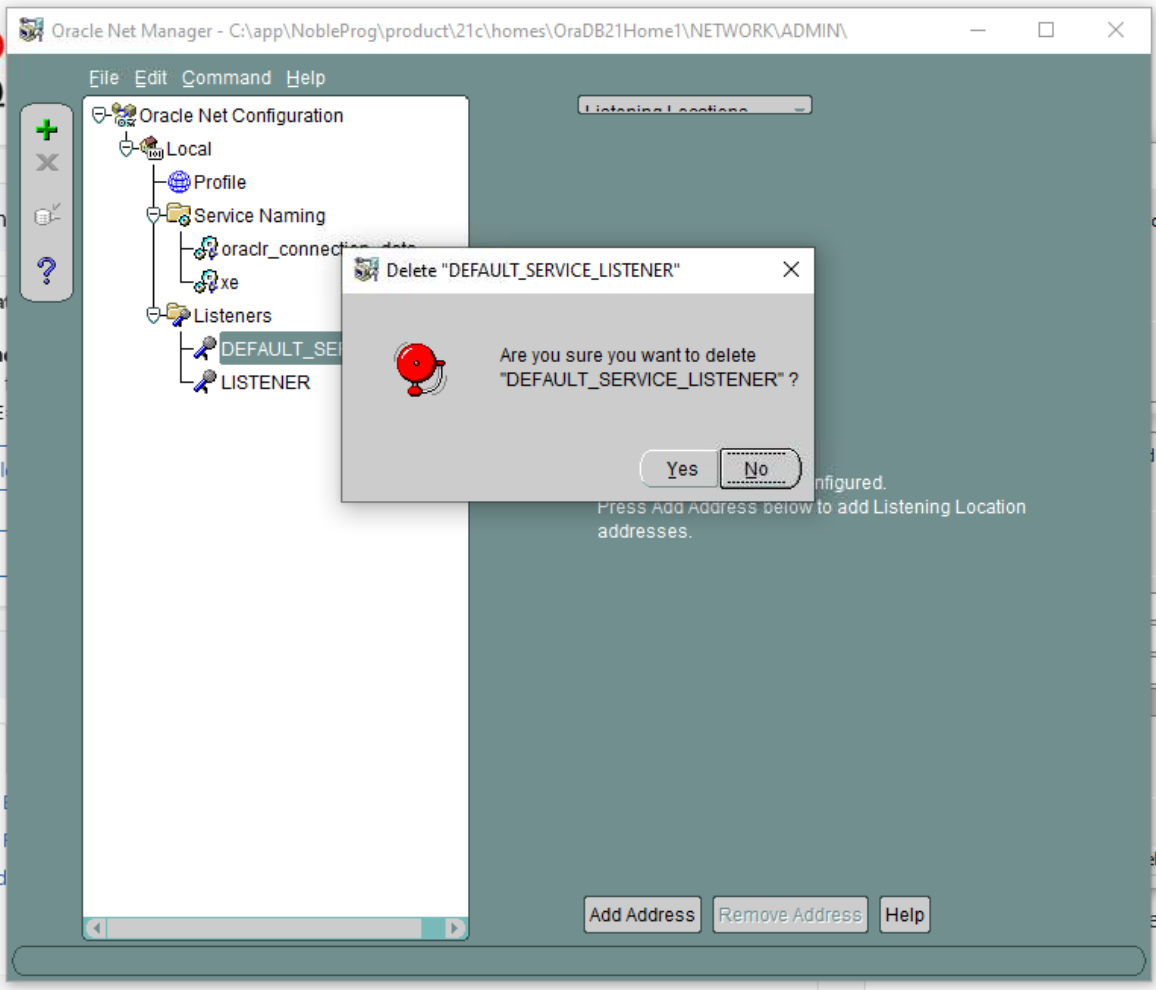
8. Hence, delete the DEFAULT SERVER LISTENER.
9. On LISTENER (the sole remaining one), you’ll spot the existing VM hostname that must be altered because it will change during cloning.
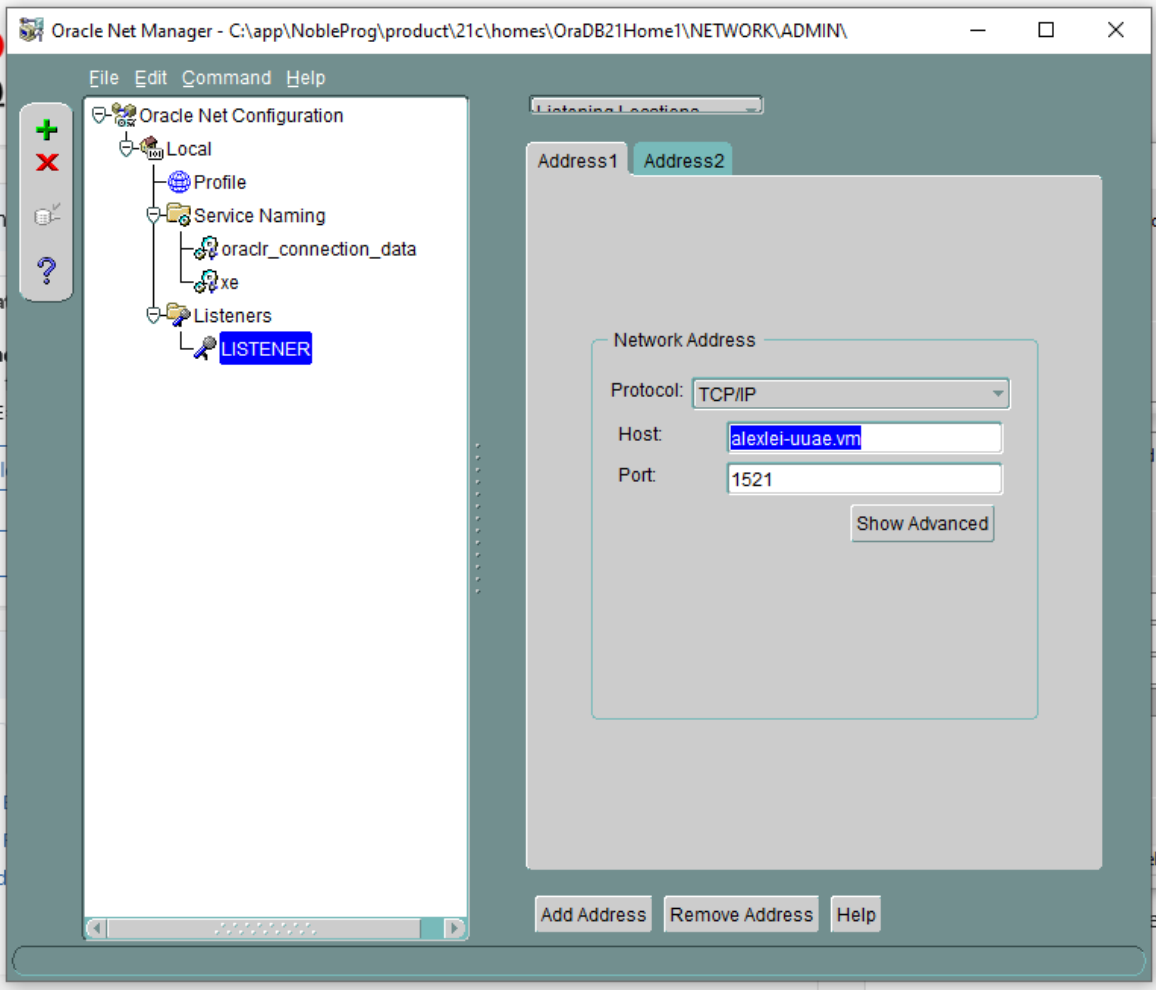
10. Replace the host from the current value – in our case ‘alexi.uuae.vm’ – with 127.0.0.1, leaving the port unchanged.
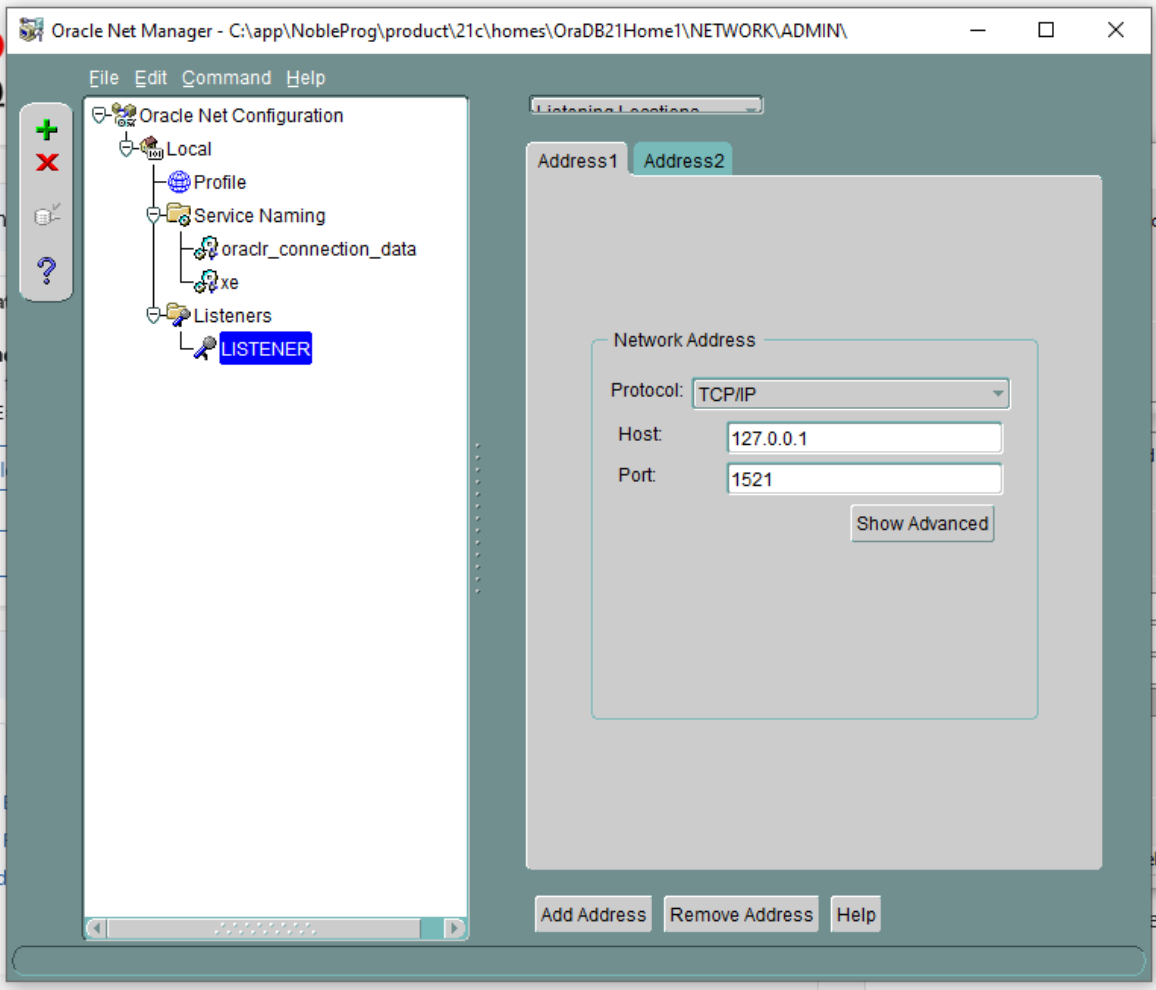
Next, configure the existing database
11. Change the SID to XE, and set the Global Database Name to xe.local
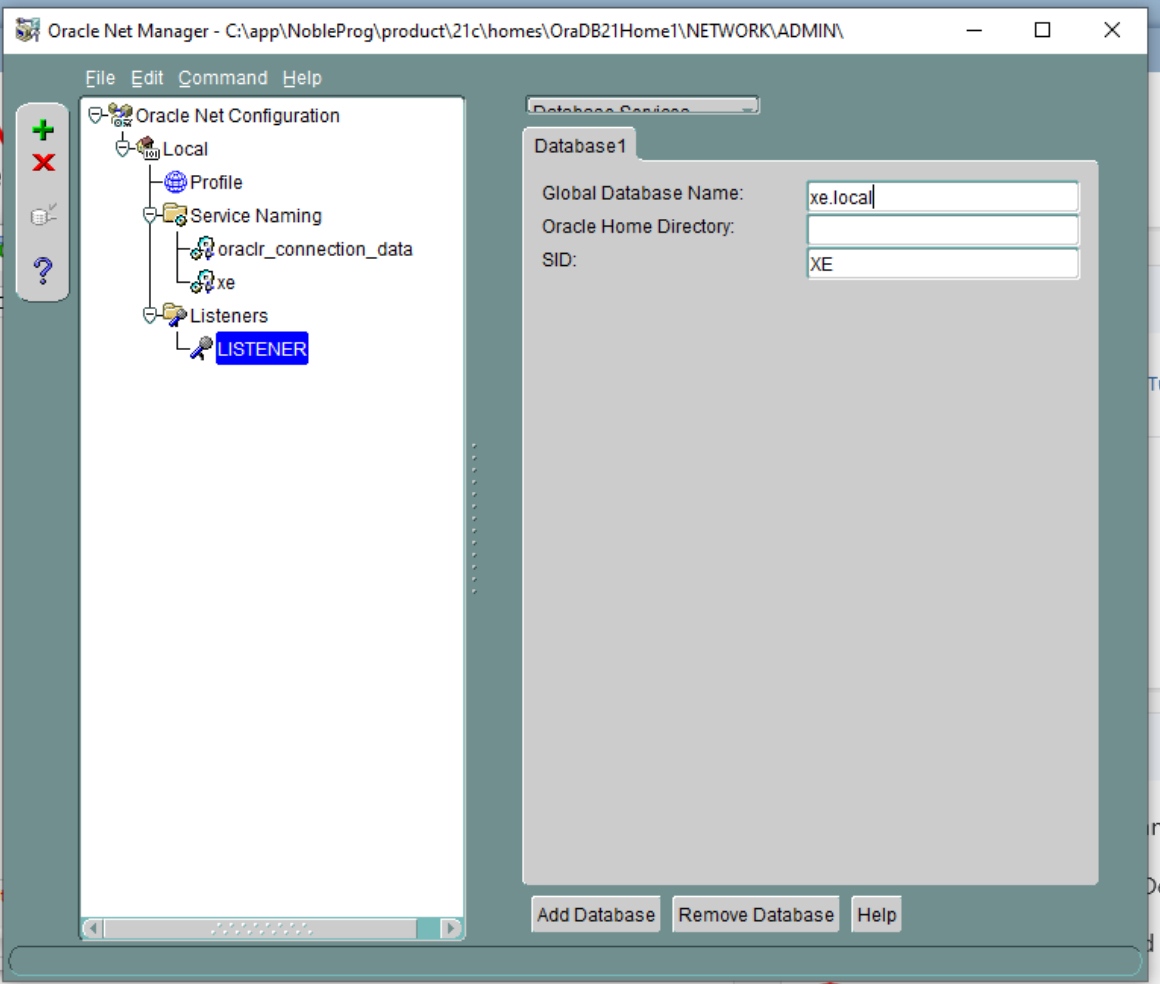
12. Save the Network configuration and close the application.
13. Open a Command prompt to restart the listener service.
Type ‘lsnrctl status’, then ‘lsnrctl stop’.
Type ‘lsnrctl start’.
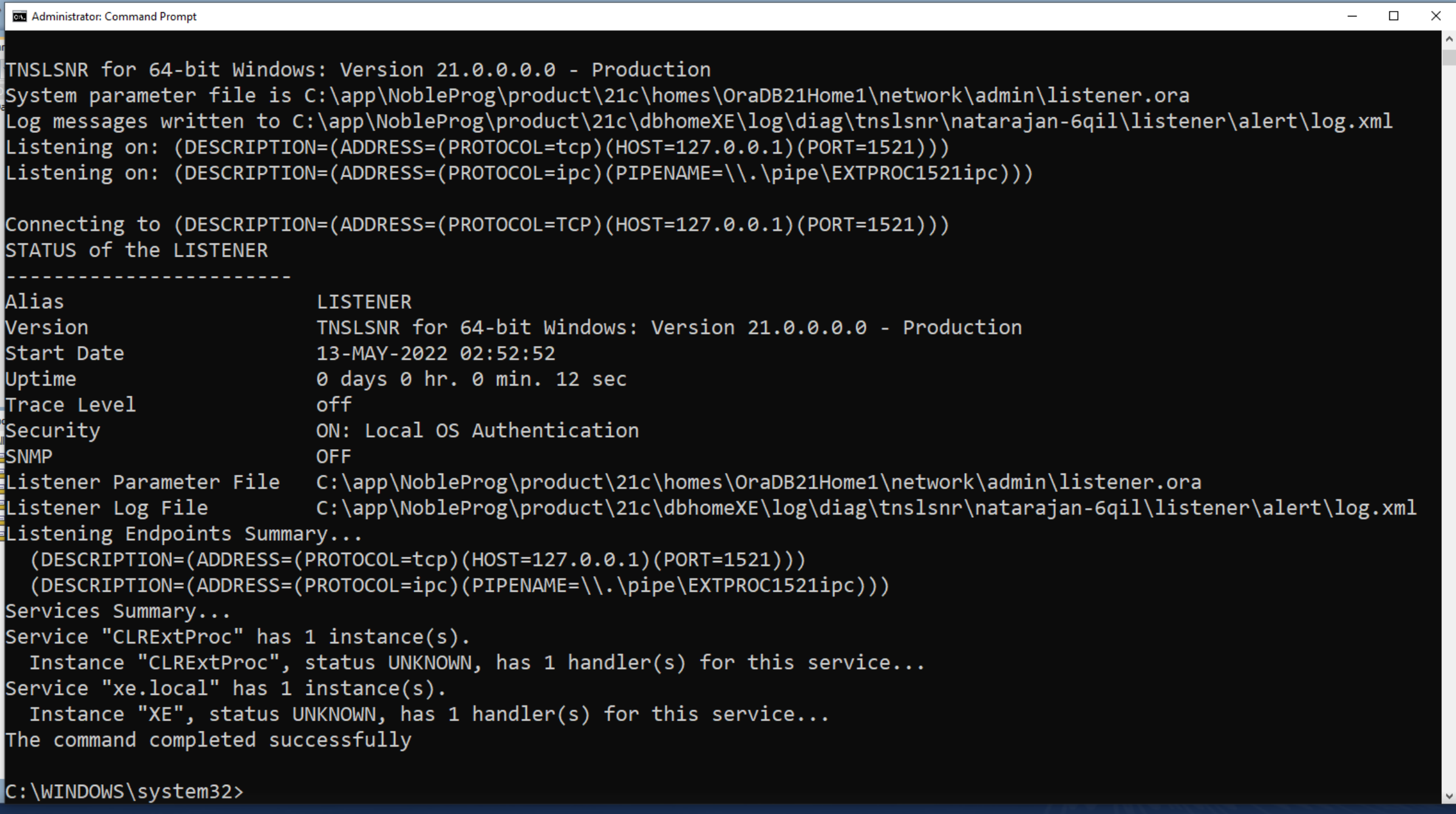
Launch Oracle Net Manager once more.
14. Remove alexei-vm from Service-naming → xe section.
15. Update the host to 127.0.0.1
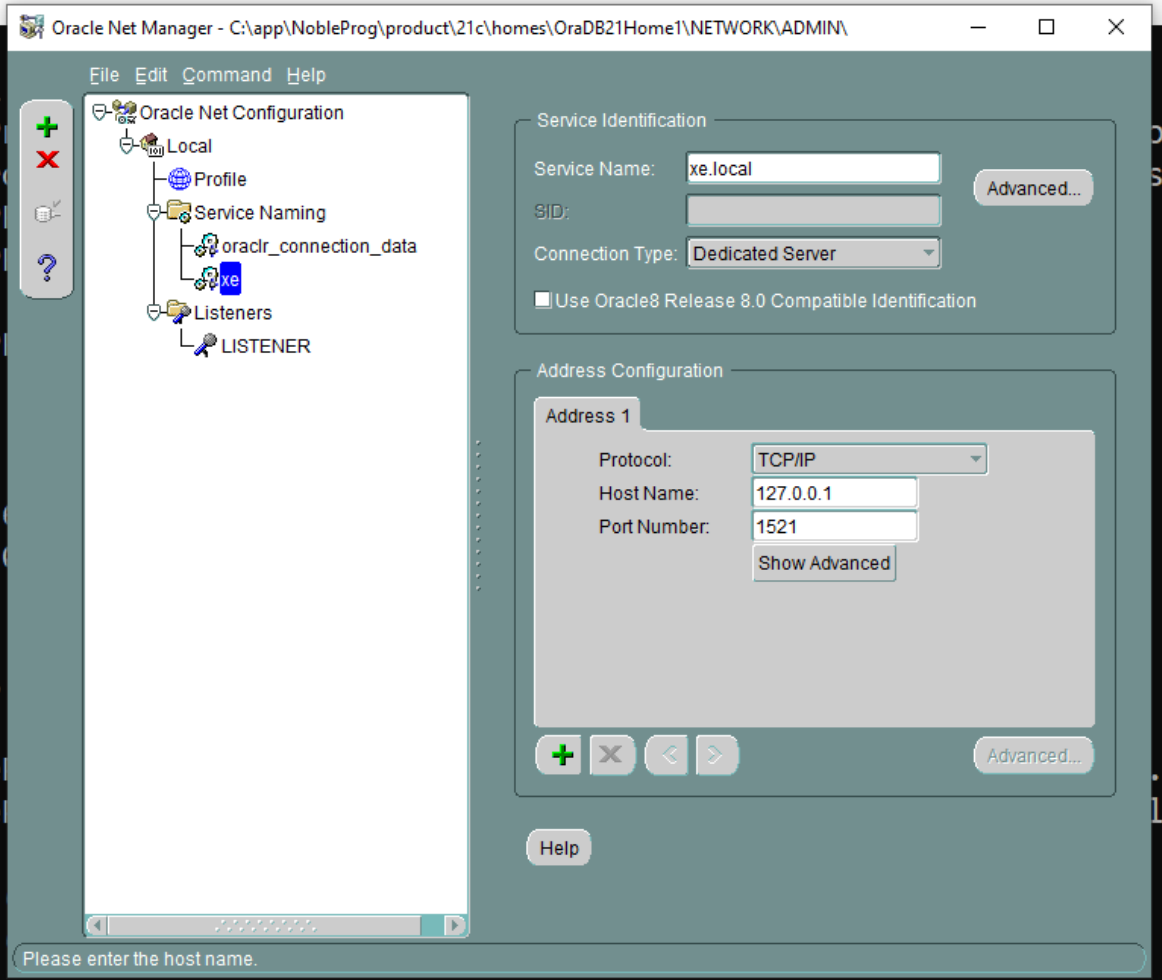
16. Save the Network connection.
17. Connection Test. Click the small button shown in the picture below to launch the Connection Test.
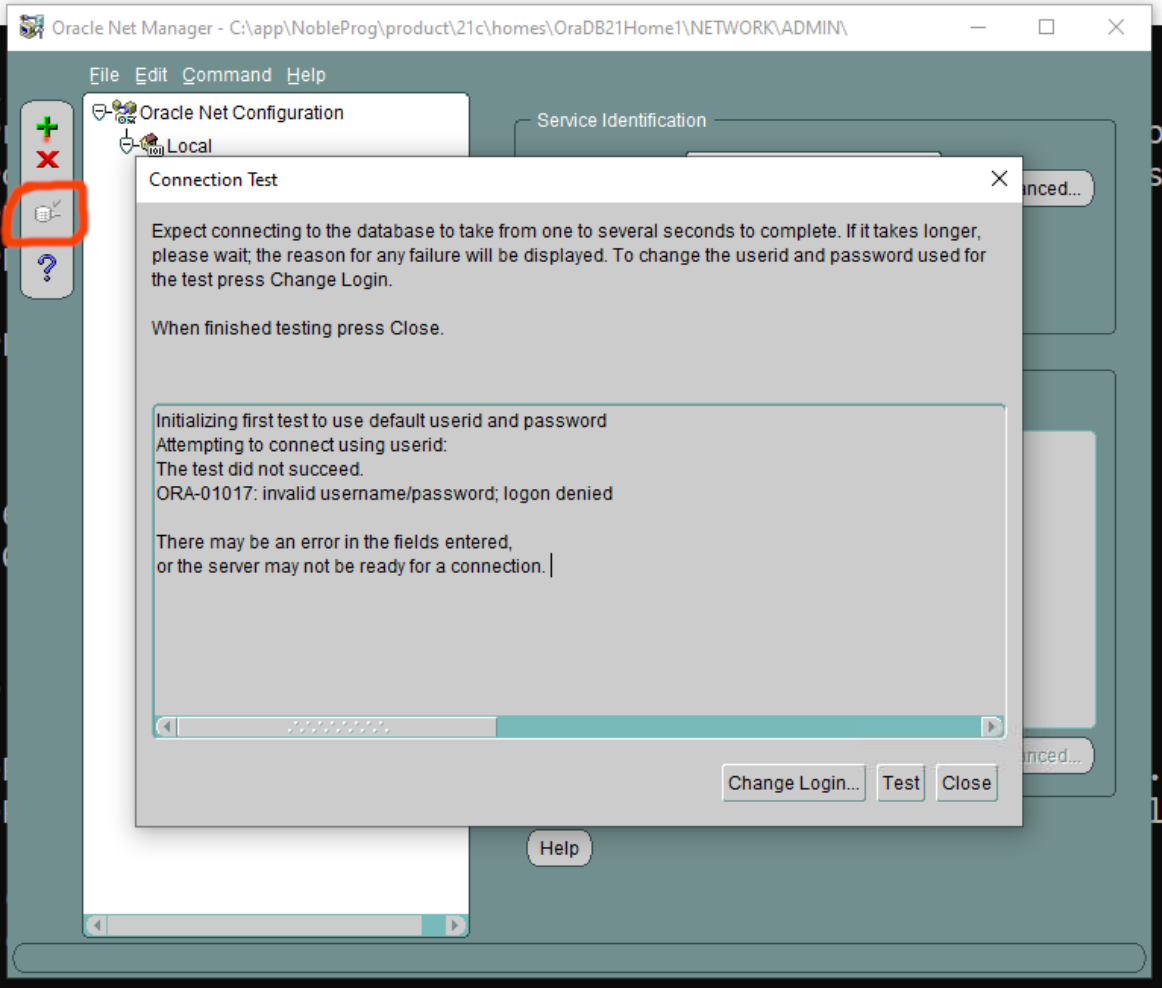
18. Adjust the login details. Set the username to ‘system’ and enter the relevant password.
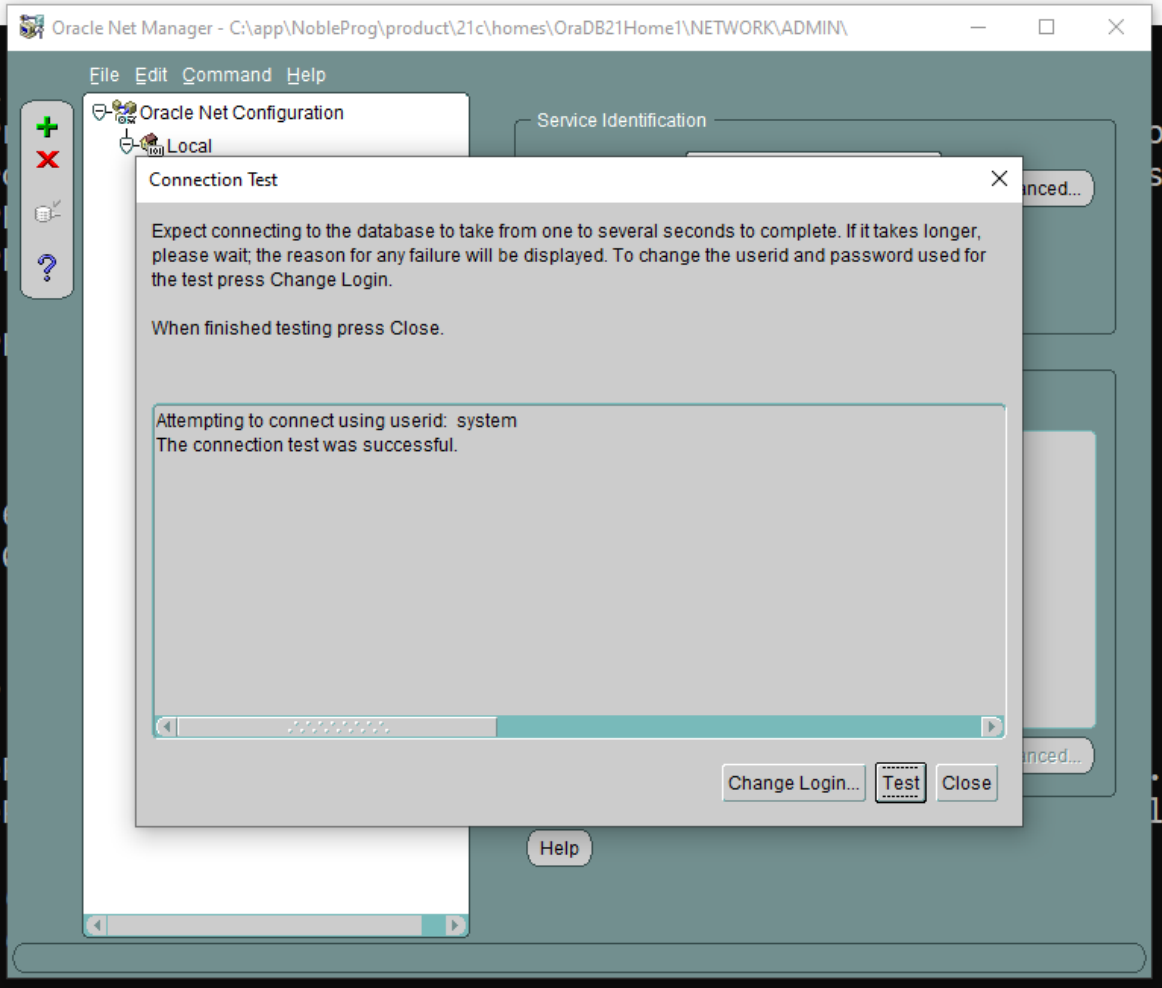
Save the network connection if needed.
19. Return to the main Oracle SQL Developer app. Run the Connection test again.
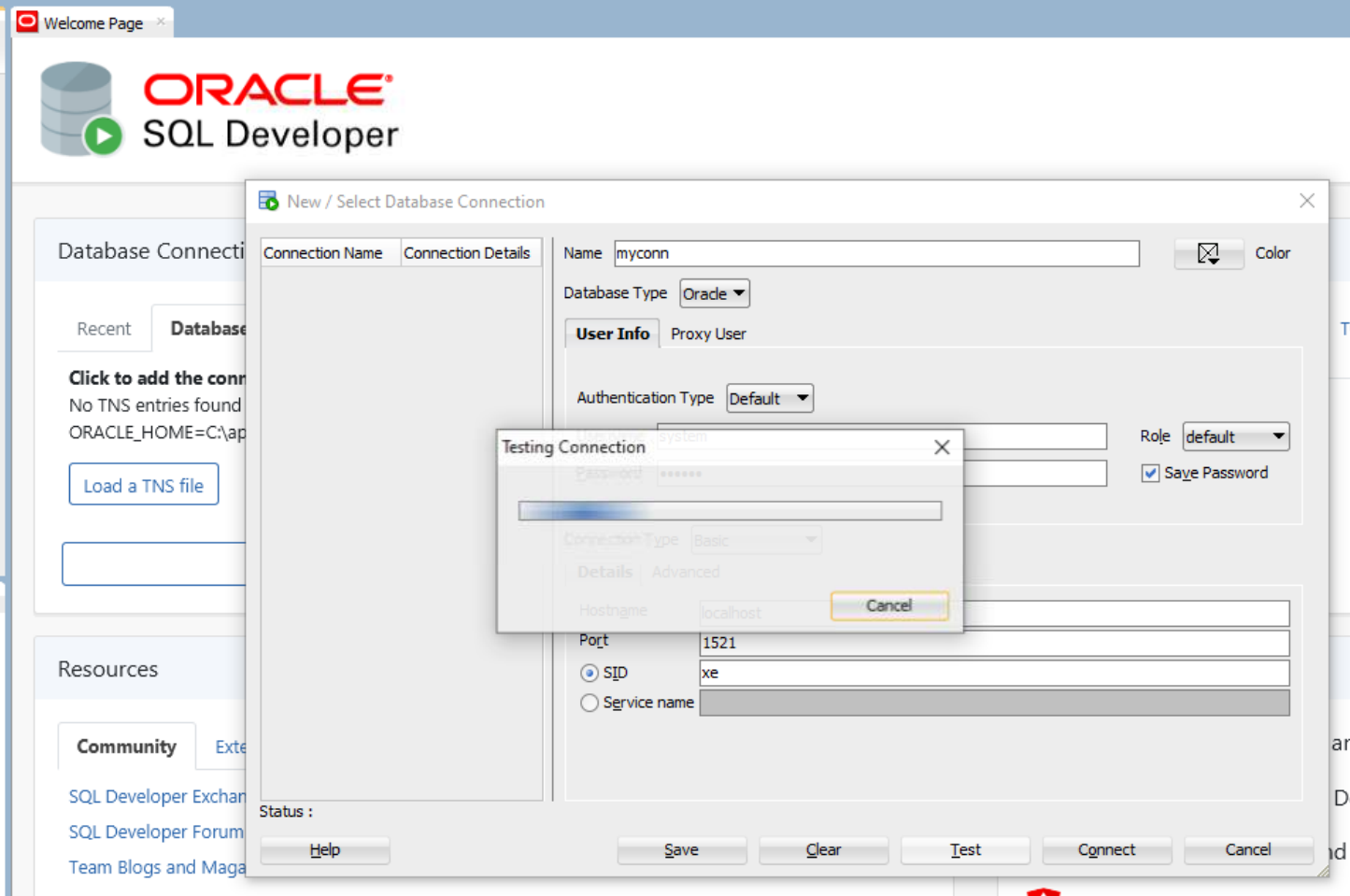
20. Assuming the connection is successful, head to Connections on the left-hand panel, expand Oracle Connections, and verify that the database tables appear as expected.
21. Continue setting up the FreshStart machine as needed and clone FreshStart machines into Trainer and Participant machines.
The Oracle Database server should now operate correctly on both Trainer and Participant machines.
If you still run into problems, reach out to DaDesktop Support via the chat app – we’re happy to assist.