Scheduling Courses Across Multiple Dates
When creating a course, you can set it up for multiple dates. This allows you to customize availability for your participants and accommodate your own schedule.
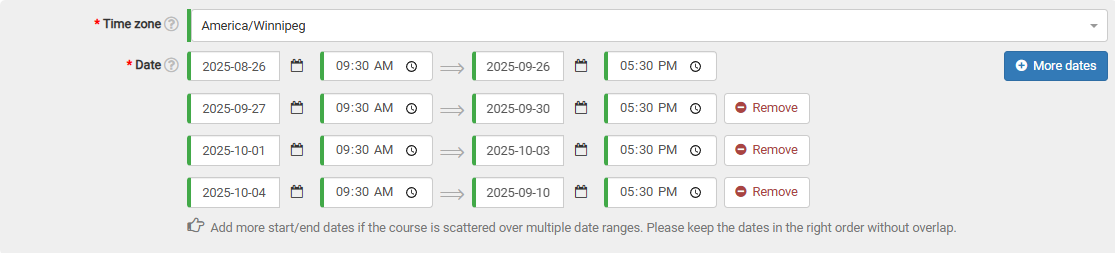
On the date section of the course form, click the "More dates" button. A new date selection line will appear on the form right away.

You can add as many date ranges as you need, as long as they don't overlap with each other.
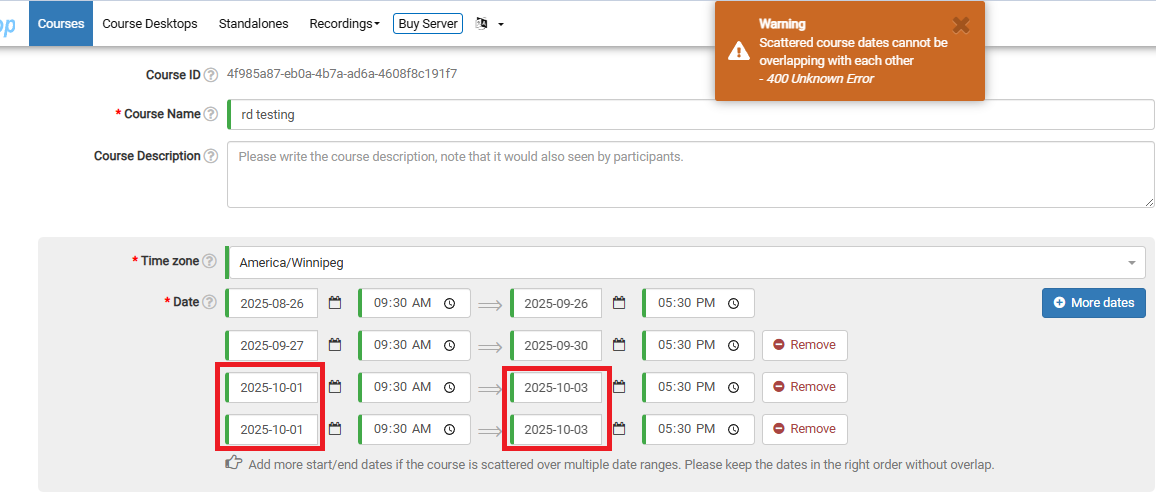
If they do overlap, you'll see a warning at the top of the page when you try to submit your course. Below, I've accidentally chosen two identical date ranges, which triggers this alert.