Trainer Session Recordings
DaDesktop offers several options for capturing desktop activity and course sessions. These include trouble-shooting recordings, training room recordings, and trainer recordings.
Trainer recordings capture what happens on the trainer’s own DaDesktop machine. To begin recording a trainer session, follow these steps.
- Select the three vertical dots to open a small dropdown menu. From that menu, pick 'Connect (with session recording)'
-
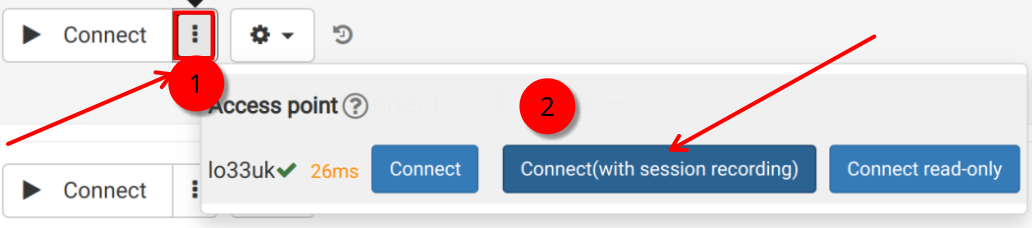
An audio/video recording of the trainer’s machine begins, but it won’t be available for viewing until after you end the virtual classroom and the recording is finalized. Note: If you’re logged in as a SuperAdmin, you’ll see an extra menu option that lets you watch live recordings while they’re being captured.
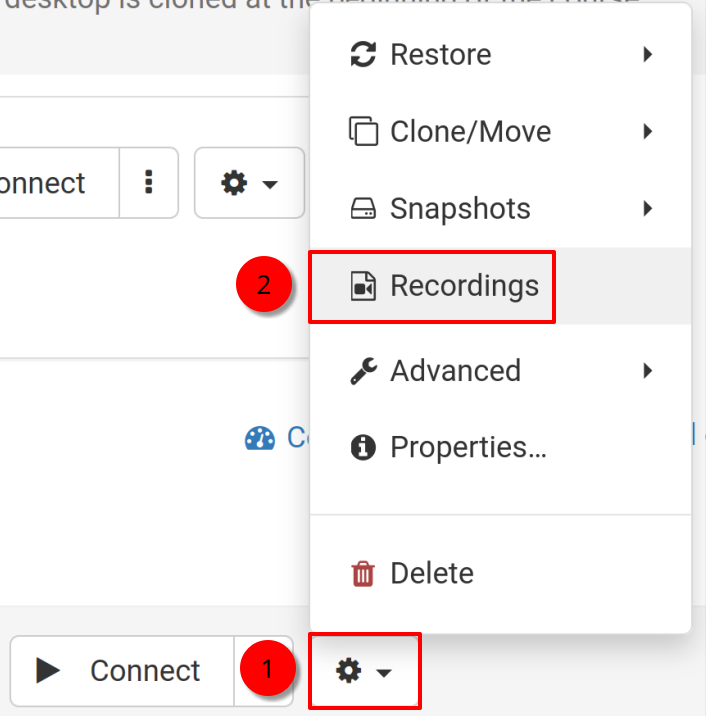
- To access and manage your recordings, click the settings (cog) icon and then go to the Recordings menu.
Recordings
You can review trainer recordings in two ways.
- First, you can access them through the Recordings menu mentioned earlier. From there, you can play or delete recordings as needed. The double spanner icon marks 'Troubleshooting Recordings' — these are generated automatically, not for presentation, but to help with troubleshooting when issues arise.
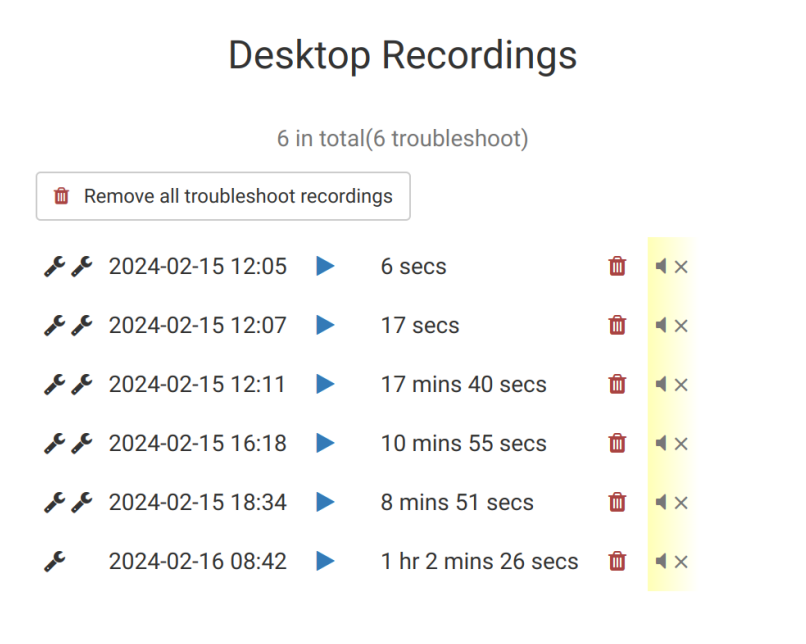
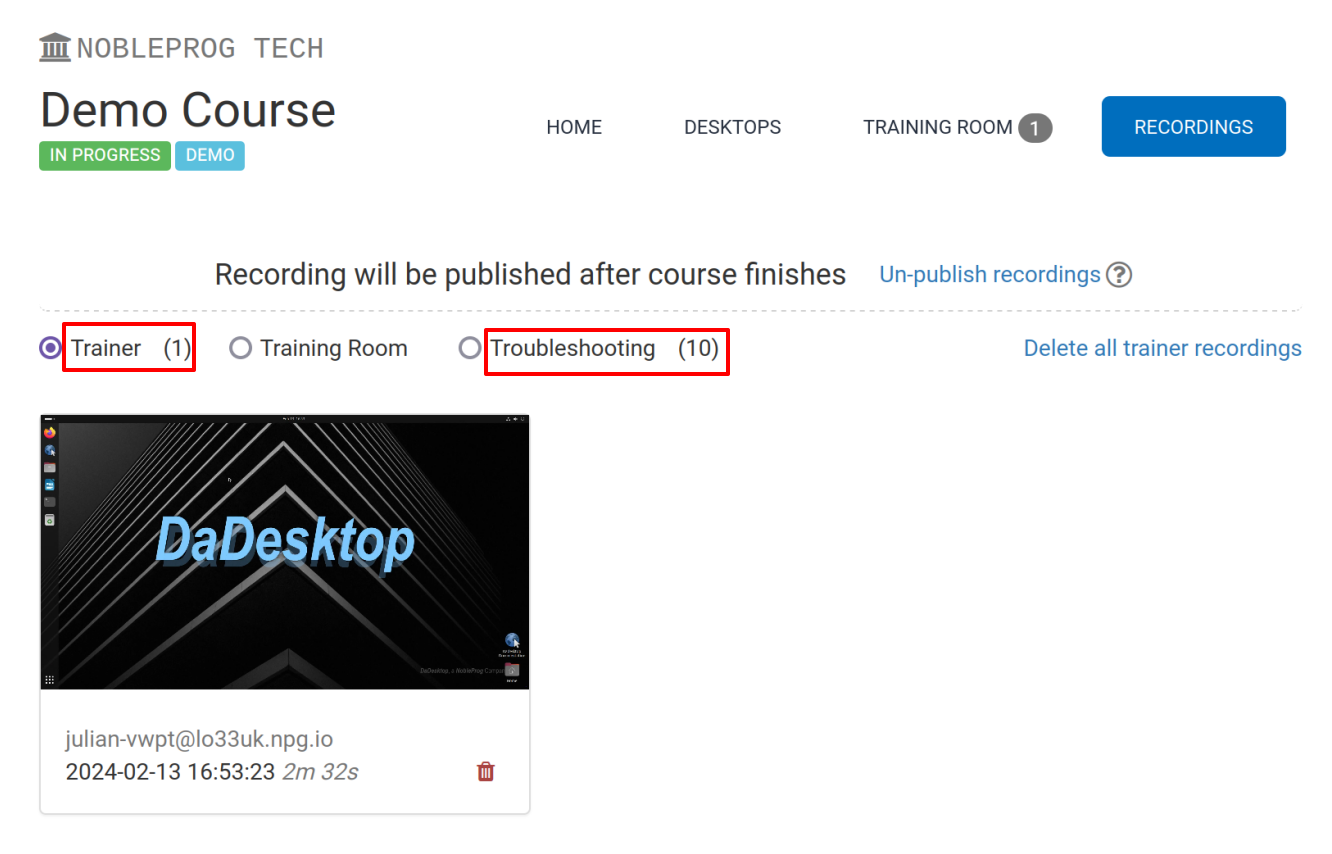
2. Second, by navigating to the ‘Recordings’ tab within a course, you’ll find trainer recordings, training room recordings, and trouble-shooting recordings all in one place.